Thursday, 4 February 2016

Android Marshmallow tips and tricks: 12 you need to try

1. Uninstall apps from your home screen or app drawer

In Android Marshmallow you can now uninstall an app on your home screen or in your app drawer simply by long-pressing it. At the top of the screen you'll now see options for Remove or Uninstall on the home screen, or App Info and Uninstall in the app drawer. Simply drag the app icon to the one you want.
AndroidPIT Android M preview uninstall app direct
You can now instantly uninstall apps from the home screen or app drawer. / © ANDROIDPIT

2. Activate Developer Options

Developer Options are nothing new, but there are a few new developer one in Android Marshmallow. To access Developer options, go to Settings > About Phone and tap Build Number seven times, until a toast pop-up notifies you that you are now a developer.
Back up a step and you'll see Developer Options listed right above About Phone. This is where you can enable USB Debugging, OEM Unlocking or Show Touches, tweak animations, or access some of the other tips below.
AndroidPIT Android M preview developer options enabled
Enabling Developer Options is always one of the first things we do. / © ANDROIDPIT

3. Grant app permissions individually

Granular app permissions was the holy grail of the Android Marshmallow release. We all hoped it would pan out but no one really believed it would. We had always been told that denying specific app permissions within a third-party app could break it. Now, however, Android lets you manage app permissions individually, without developers having had to do anything, and everything seems to work swimmingly.
AndroidPIT Android M preview AnTuTu permissions
You can view and toggle permissions for an individual app. / © ANDROIDPIT
To access app permissions, go to Settings > Apps and tap an individual app to see its permissions. Then simply flip the switch for the permissions you do or don't want to grant it. You can also view a list of permissions to see which have been granted to which apps. Just go to Settings > Apps, then tap the overflow menu in the top right corner and go to Advanced > App Permissions.
AndroidPIT Android M preview app permissions location
You can also view app permissions by permission type. / © ANDROIDPIT

4. Customise Quick Settings using System UI Tuner

To enable the System UI Tuner, bring down your Quick Settings menu (swipe down from the top of your phone with two fingers) and tap and hold the settings button (cog wheel) for five seconds. When you let go you will be asked if you would like to enable System UI Tuner. Select yes and you'll see System UI Tuner at the bottom of your Settings list.
In System UI Tuner, tap Quick Settings and you'll see a mockup of your Quick Settings shade. You can add tiles (press the + at the bottom), move the toggles around (tap and drag) or delete toggles (tap and drag to the bottom). Your changes will be reflected in the Quick Settings menu.
AndroidPIT Android M preview system ui tuner
The UI Tuner lets you rearrange your Quick Settings menu. / © ANDROIDPIT

5. Get to know RAM Manager

Android Marshmallow is all about giving us even more power over our beloved Androids, and RAM is a huge part of that. Go to Settings > Memory > Memory used by apps, to see a list of all your memory-hogging apps.
Tapping an entry will show you detailed info and give you the option to force stop the app if necessary. Take some time to familiarize yourself with this part of your Android – it's a great tool to help you understand what RAM usage is normal and what's out of the ordinary.
androidpit ram manager android marshmallow
The new Memory section in the advanced app settings gives you a clear picture of RAM usage. / © ANDROIDPIT

6. Find your Downloaded, Running, All and Disabled app tabs

The RAM Manager is also effectively the new home for the 'Running' tab that was in previous versions of the Settings > Apps section. Unlike previous Android versions, Android Marshmallow doesn't break your apps list down into tabs for 'Downloaded', 'Running', 'All' and 'Disabled'.
The 'Running' tab now appears as RAM Manager; 'All' and 'Disabled' are now options in a drop-down menu, accessible once you've disabled at least one app. The default view in Settings > Apps is the 'All' apps tab. We'll have to wait and see how devices with SD cards display the information that was previously found in the 'SD Card' tab.
AndroidPIT Android M preview all apps tab disabled enabled
On the right, we now have a drop-down menu for disabled and enabled apps. / © ANDROIDPIT

7. Automatically associate links

Android Marshmallow allows you to automatically associate specific apps with specific types of links. So if someone emails you a Twitter link, for example, you can set Twitter as the default app for opening such links, rather than picking from a list every time.
Although you could set certain apps as default apps before, the system didn't work all that well. Now you can associate specific domain URLS with an app of your choice. For example, all facebook.com links can be set to open either in Facebook, Tinfoil or another third-party Facebook app automatically.
To do this, go to Settings > Apps, then tap the overflow menu at the top right and go to Advanced > App Links, then flip the switch for the apps that you want to set to automatically intercept links from specific domains.
AndroidPIT Android M preview app links open by default facebook
Android Marshmallow gives you complete control over which apps handle certain domains. / © ANDROIDPIT

8. Ignore battery optimizations

Android Marshmallow delivers a great new feature called Doze. When your phone or tablet has been inactive for a while, Android Marshmallow will automatically hibernate it (although alarms and priority notifications can still come through).
You can also still use the Battery Saving Mode, just like in Lollipop. Now, however, you can exclude up to three apps from the battery optimizations imposed by Battery Saver or Doze, so they can run at full strength while everything else takes a rest.
Go to Settings > Battery and tap the overflow menu in the top right, choose Ignore Optimizations and select the apps you want this to apply to. You can access the same menu from Settings > Apps > overflow menu > Advanced > Ignore Optimizations.
AndroidPIT Android M preview ignore battery optimizations
Android Marshmallow lets you exclude certain apps from battery optimization measures. / © ANDROIDPIT

9. Activate Google Now from the lock screen

You might have missed this one, but the lock screen shortcut to the dialer has been replaced by Google Now. This is a welcome change; you can use Google Now to call someone just by speaking (along with plenty of other things), so you haven't lost out on functionality by losing the dialer shortcut.
Simply swipe from the bottom left-hand corner of the lock screen to get Google Now ready to receive your voice command.

10. Enjoy Google Now on Tap

Google Now on Tap is easily my favorite feature in Android Marshmallow. It brings Google Now functionality to every part of your phone or tablet. There's no need to switch apps or copy and paste phrases anymore – once it's enabled, you can bring up Google Now on Tap from any app, simply by selecting text and long-pressing the Home button.
AndroidPIT Google I O 2015 Google Now Now on Tap
Google Now on Tap can provide relevant content without even leaving the app you're in. / © ANDROIDPIT

11. Disable notification peeking 

Heads-up notifications, or 'peeking' as it is now referred to, is the feature that allows notifications to pop up over the top of your display. It was introduced in Android Lollipop, but since app developers now tend to enable peeking by default, Android Marshmallow gives you the power to decide if you want to allow it or not.
If these types of notifications bother you, you can go into Settings > Sound & Notifications > App Notifications, then select the app they're coming from, and switch off 'allow peeking'. 
androidpit app notifications marshmallow peek
If notification peeking in a particular app is bothering you, you can disable it for that app. / © ANDROIDPIT

12. Check out the Android Marshmallow Easter Egg

The Android Easter Egg is one of the most pointless but fun parts of any new Android version. You simply go to Settings > About Phone and repeatedly tap the Version Number to find it. In Lollipop you'd see a giant lollipop, and if you long-pressed it, you'd be taken to a Flappy Bird clone. 
In Marshmallow, tapping the version number, reveals an graphic of the letter M. When you tap it again, you get a marshmallow with android antenna.
android marshmallow easter egg
Tap once for M, twice for an antennaed marshmallow / © ANDROIDPIT

Bonus Marshmallow tip: Switch on multi-window mode

This final tip will need you to get your hands dirty with rooting and flashing, but we wanted to include it anyway. Multi-window mode lets you open a separate app in a new 'pop out' window, so you can run two at once. This feature can already be seen on the Galaxy Note 4 and Note 5, but now you can get it on stock Android. Read the full tutorial over at the XDA Developers forums if you're interested. 
Found any other hot Android Marshmallow tips and tricks you can share? What's your favorite? Let us know in the comments.

Cool Trick to Download Torrent Files Faster


What is Torrent ?

Torrent is today’s most used system in the world. Torrent is used to download extremely large file from the internet. Torrent is actually depend upon Seeders and Leaches, if the seeders and leaches and few then the downloading speed of that torrent file will be very slow. There are many software’s comes to download torrent files most famous among them is utorrent and Bittorrent. Torrent will become slow if you have low upload speed because torrent is uploading file as well when you are download any file.
 

What is IDM ?

In “Downloading” purpose, Internet Download Manager (IDM) use in a very large amount because of its speed and many useful functions. If you download the torrent file through Internet Download Manager (IDM), it will be download too fast with compare to utorrent or Bittorrent. Also it will never depend upon your Upload Speed. So without going to further details, lets discuss and know that how we can download torrent files with Internet Download Manager with maximum speed?

Steps to Download Torrent Files with IDM:


Step 1: Download any Torrent with torrent websites .Eg kat.ph

Step 2: Go to zbigz.com, click on “Upload Torrent” and Upload the Torrent file that you have downloaded from Torrent Website.
learn2crack.com
Step 3: After choosing file, click on “Go!” and then choose Free Download.
Step 4: After click on “Free Download”, wait for a minute until your downloading is to be ready.
learn2crack.com
Step 5: When your downloading is ready, click on “.Zip” button to begin your downloading. Also you have multiple choice, you can download files one by one or anyone from torrent file.
learn2crack.com

 Your download is starting when you click on “.Zip”, If you Internet Download Manger is not opening when you click on zip, copy the Zip button link and paste it to Internet Download Manager.
learn2crack.com
 
Enjoy:-)

Call Of Duty Modern Warfare 3 Game


Download Setup File from Downloader (100% Working Link)


Call Of Duty 3 Modern Warfare Game!
File Size:5.2GB
System Requirements!
  • Windows Xp,7,Vista,8
  • Ram: 2 GB
  • Video Memory: 256 MB
  • HDD : 16 GB
  • Cpu: Intel Core 2 Due E6600

Call Of Duty Modern Warfare 3 Game

Best new phones coming in 2016


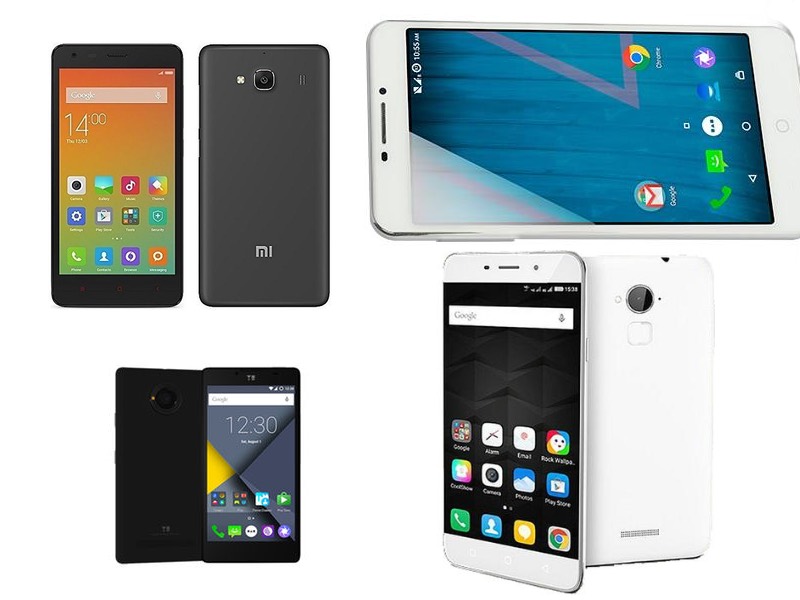
Some smartphones are worth waiting for, and there are some stunners coming in 2016. These are the best new phones coming in 2016, including the best new Android phones, best new iPhones, best new Windows phones, best new Samsung phones, best new Sony phones, best new HTC phones, best new LG phones and more.

It's not easy to simply head to a store and buy a smartphone based on a single specification. We always choose the one that falls within our budget and compare its overall performance with others in the same price segment before finally deciding to buy it.
Over time, we have seen smartphones often being boasted either for their camera, battery, or any other specification but not as an overall package. This makes it difficult for users to choose which is the best value for money phone and where does it exactly fall when it comes to overall performance.
It is worth noting that while certain specifications may appear good in theory, they may not necessarily translate into a smartphone with best overall performance. Smartphones with high-end specifications, for example, can often give underwhelming results.
Here's a list of smartphones - all available under Rs. 10,000 - with best overall performance in our reviews, in no particular order. Note that we've restricted ourselves to phones launched in roughly the last six months.
Yu Yureka Plus
The Yu Yureka Plus, which was launched back in July this year, has already made it to the list of best camera phones under Rs. 15,000 and is now one of the best smartphones under Rs. 10,000 as well. The smartphone after going through rigorous tests gave impressive results and got an overall rating of 9/10 in all the sections except in design and battery life where it settled for 8/10. Available for as low as Rs. 8,999, the Yureka Plus smartphone runs on Cyanogen OS 12.1.

Yu Yureka Plus

Rs. 9999
  • Design
  • Display
  • Software
  • Performance
  • Battery life
  • Camera
  • Value for money
  • Good
  • Improved display and camera
  • Great performance
  • Customisable Cyanogen OS
  • Excellent value for money
  • Bad
  • Nothing significant considering the price
Read detailed Yu Yureka Plus review
Coolpad Note 3
Coolpad Note 3 is a comparatively a newcomer as it was launched in October this year. The smartphone fared well in our review, scoring a 9/10 rating for value of money. We were impressed by the smartphone's quick and accurate fingerprint sensor, camera, battery life and overall performance. However, the UI customisations were not up to the mark. The handset is available for Rs. 8,999 from leading online retailers.

Coolpad Note 3

Rs. 8999
  • Design
  • Display
  • Software
  • Performance
  • Battery life
  • Camera
  • Value for money
  • Good
  • Quick and accurate fingerprint sensor
  • Good performance
  • Good camera
  • Good battery life
  • Bad
  • Limited availability
  • Unappealing UI customisations
Read detailed Coolpad Note 3 review
Xiaomi Redmi 2 Prime
The Redmi 2 Prime by Xiaomi was one of the Chinese tech company's iconic smartphones this year as it was the first 'Made in India' handset. It was launched in August this year and carried the same price tag as Meizu m2 - Rs. 6,999. The Redmi 2 Prime managed to secure a spot for itself in the list mainly because of its 4.7-inch IPS Sharp display with HD resolution and a decent battery life. The camera and design of the handset also got a respectable 7/10 rating in our review.
  • Design
  • Display
  • Software
  • Performance
  • Battery life
  • Camera
  • Value for money
  • Good
  • Good construction quality
  • Great screen
  • Decent battery life
  • LTE on both SIMs
  • Bad
  • Ships with an outdated version of Android
  • Limited availability
Phicomm Passion 660
Phicomm Passion 660 smartphone received a 9/10 rating for value of money in our review. Launched in June this year in India, the dual-SIM smartphone got a worthy 8/10 rating for its ergonomic design and also fared well when it come to display, performance, and camera. Although the smartphone was launched at a price tag of Rs. 10,999, it can now be purchased for as low as Rs. 8,999 from third-party online retailers.

Phicomm Passion 660

Rs. 10999
  • Design
  • Display
  • Software
  • Performance
  • Battery life
  • Camera
  • Value for money
  • Good
  • Great design and ergonomics
  • Good specification list
  • Decent camera
  • Excellent value for money
  • Bad
  • Inconsistent performance
  • Average battery life
  • UI is underdeveloped and can't be customised to your needs
Intex Cloud Flash
Intex Cloud Flash is one of the most recently launched smartphones in the Indian market. The 4G LTE supporting handset was unveiled earlier this month. Although priced at Rs. 9,999 at the time of launch, it can be purchased for as low as Rs. 7,999 from Gadgets360. The smartphone got positive feedback for its vivid display and overall performance by our reviewers. It also got decent 7/10 rating for the design, battery life, and camera.

Intex Cloud Flash

Rs. 9999
  • Design
  • Display
  • Software
  • Performance
  • Battery life
  • Camera
  • Value for money
  • Good
  • Gorilla Glass 3 for back panel
  • Vivid display
  • Good app performance
  • 128GB SD card support
  • Bad
  • Forgettable design
  • Average camera performance
  • Battery life could be better
Read detailed Intex Cloud Flash review
Disclosure: Gadgets 360 is the official retailer for Intex Cloud Flash
Yu Yunique
Yu Yunique is the most affordable smartphone in our list, and the second entry for Yu, besides the Yu Yureka Plus. The smartphone got 8/10 rating when it came to its software and value for money. The 4G LTE supporting Yunique was launched at Rs. 4,999 in September this year.

Yu Yunique

Rs. 4999
  • Design
  • Display
  • Software
  • Performance
  • Battery life
  • Camera
  • Value for money
  • Good
  • 4G LTE support
  • Good looks, low weight
  • Good display
  • Near-stock Android
  • Bad
  • Mediocre camera
  • Limited availability
Read detailed Yu Yunique review
Apart from these, the Moto E (Gen 2) 4G (Review), InFocus M530 (Review), Meizu m2 (Review) are also good overall performers, but have a siginifcant drawback in one of the departments that may stop them from becoming your preferred picks in the crowded budget segment. The Lenovo K3 Note(Review) and Lenovo A7000 (Review) are also solid picks in this price segment, though they break the six-month rule we mentioned earlier and the launch of their successors is around the corner.
Which is your favourite phone in the sub-Rs. 10,000 market? Let us know via the comments.